
This article assumes that you’ve assembled a DCC-EX command station in a well-defined manner as detailed in this article. The DCC-EX firmware is a set of instructions that tell the Mega how to generate the DCC timing and signals to control your model railroad layout. The easiest method to install the firmware on the DCC-EX hardware is to use the DCC-EX Installer. If you experience any issues with firmware installation and you are not using the well-defined DCC-EX then review the full DCC-EX Installer documentation to find settings that will support your specific needs.
- Download the DCC EX-Installer for your operating system
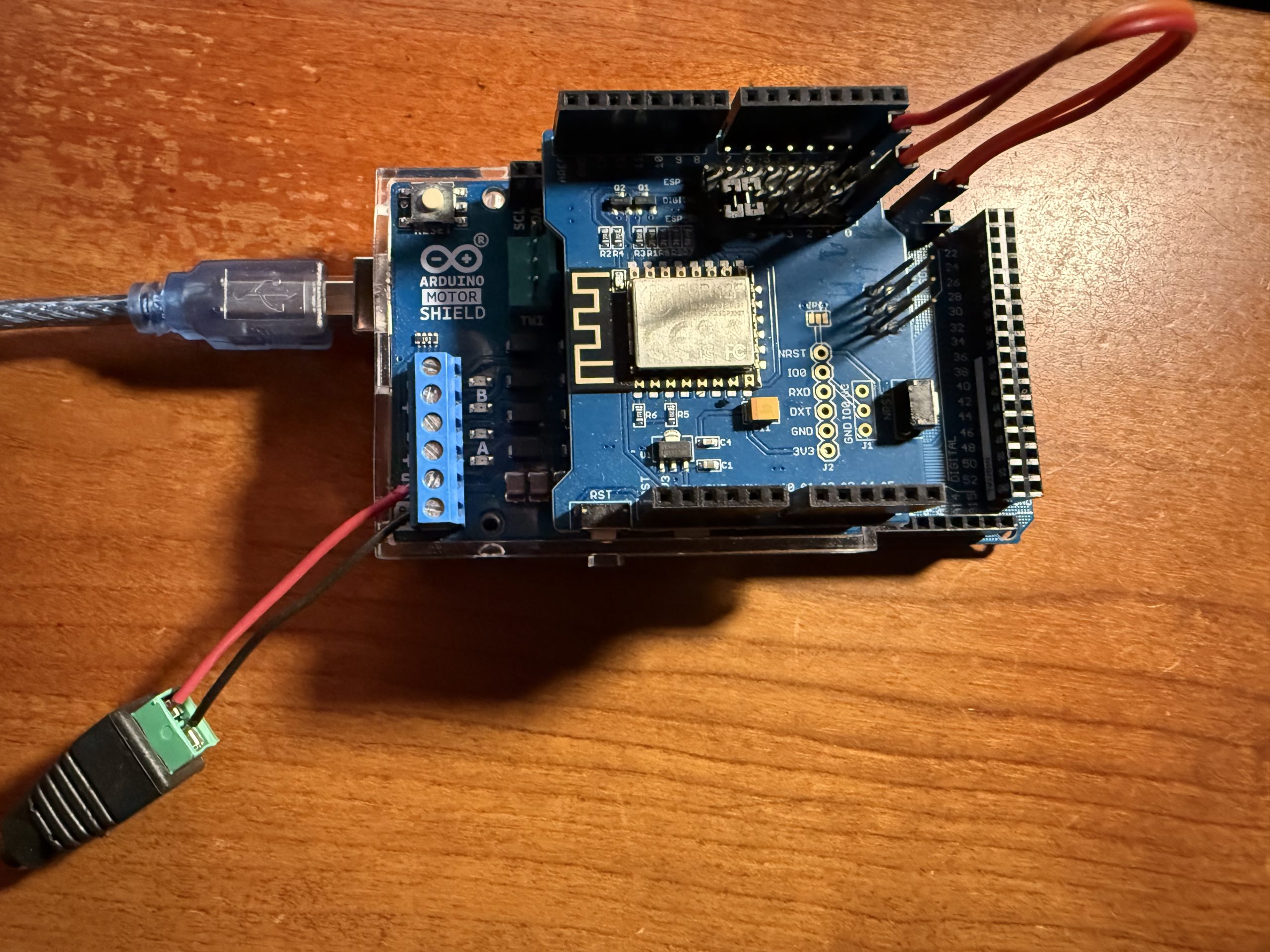
- Connect your assembled DCC-EX command station via USB cable to your system running DCC-EX Installer
- A green LED on the Mega 2560 should illuminate telling you it’s powered-on and ready for a firmware update
- The USB cable will supply power to the Mega 2560 to allow it to accept the firmware update. There is no need to plug in the 9V or 12V power supplies used for actually running trains
- Launch the DCC-EX Installer you just downloaded from the DCC-EX website
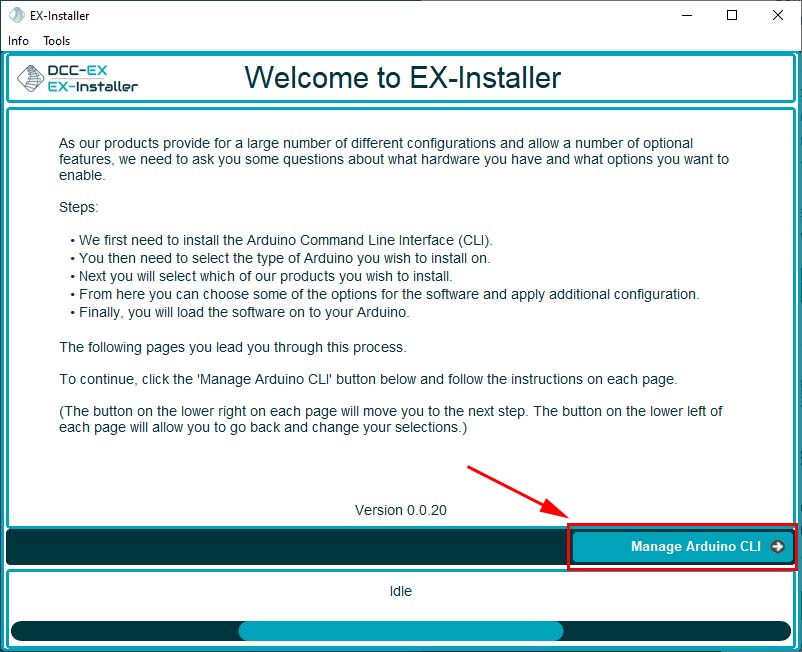
- Select “Manage Arduino CLI”
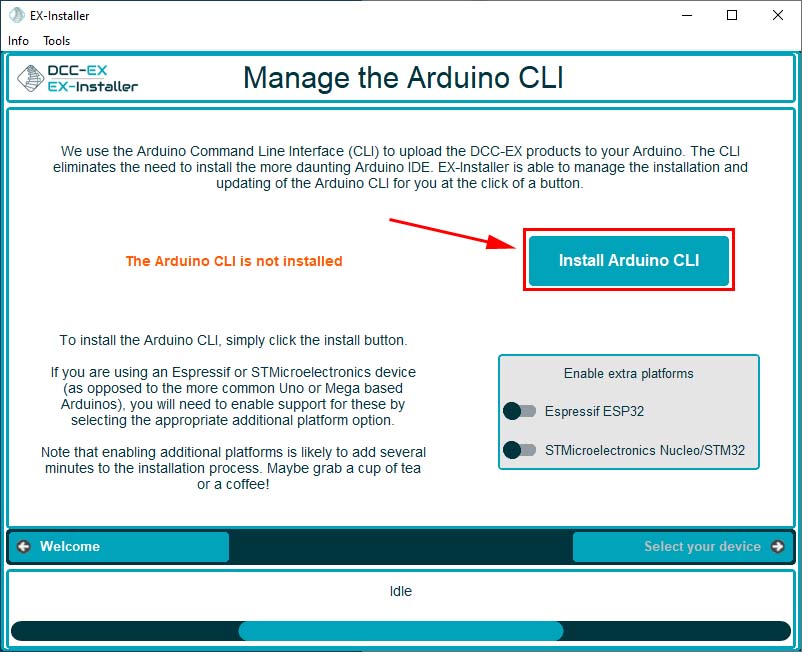
- Select “Install Arduino CLI” if it is not already installed
- The install process could take a minute, select “yes” if prompted to allow the installer to access your network
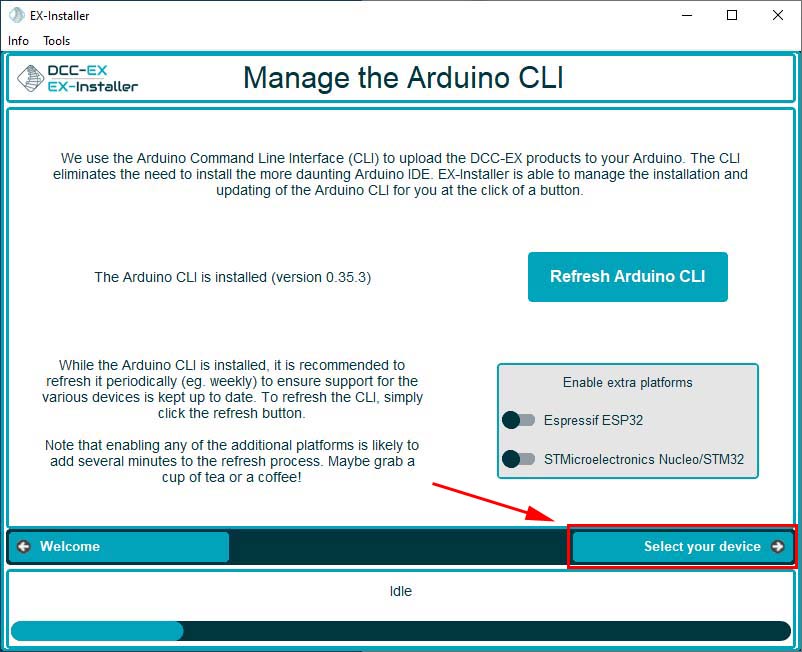
- Select “Select your device” to continue
- Since you used well-known parts to build your DCC-EX command station, the installer will automatically find your DCC-EX command station
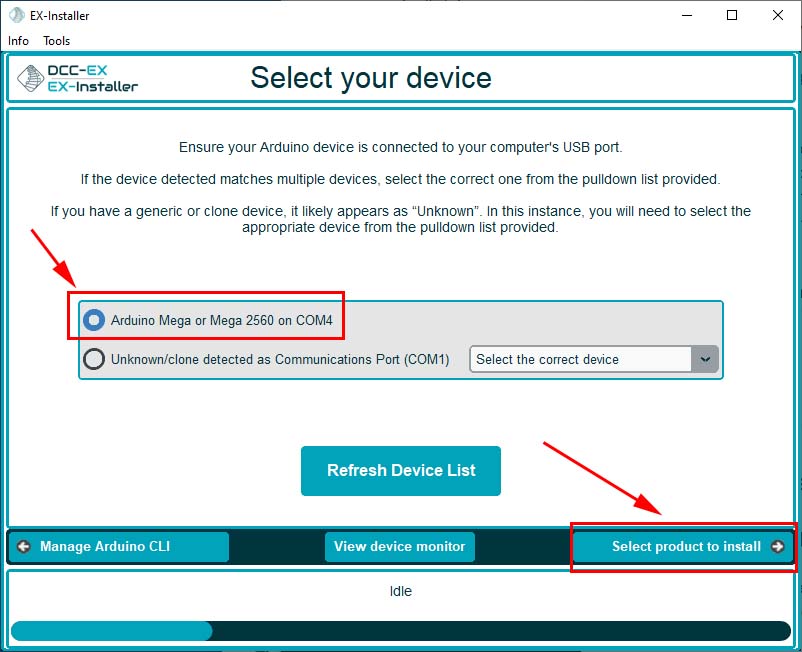
- Select “Arduino Mega or Mega 2560 on COM-X” (the above image shows COM4)
- Select “Select product to install”
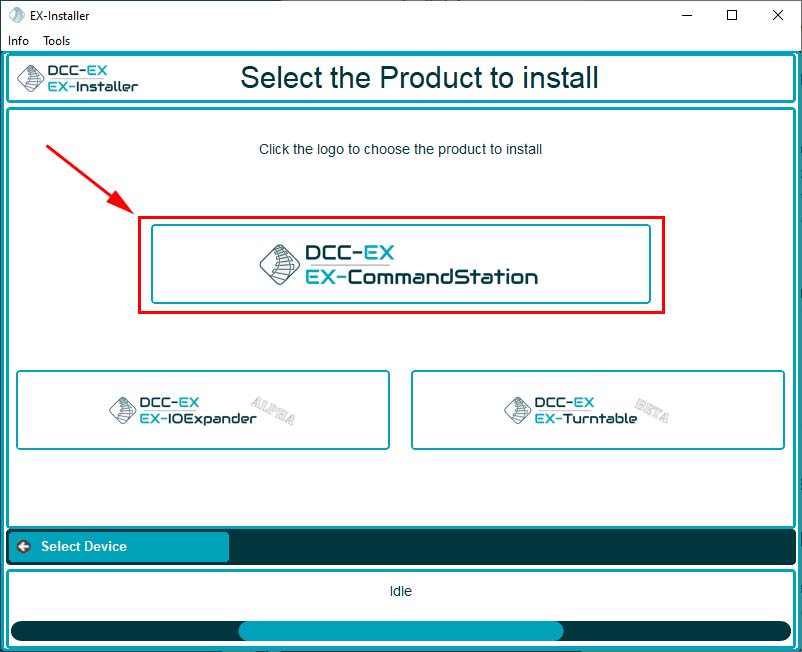
- Select “DCC-EX, EX CommandStation”
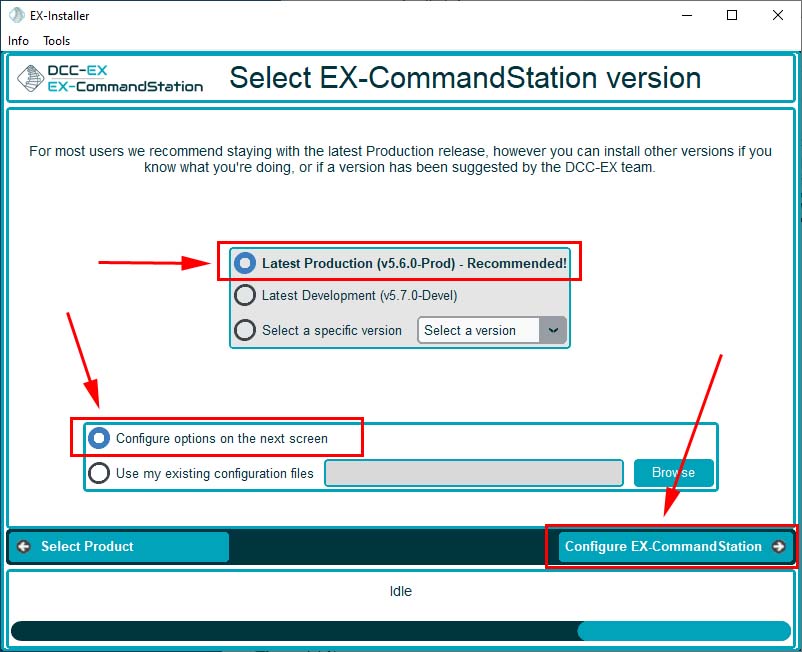
- Select the default options “Latest Production – Recommended”
- Select “Configure options on the next screen”
- Select “Configure EX-CommandStation”
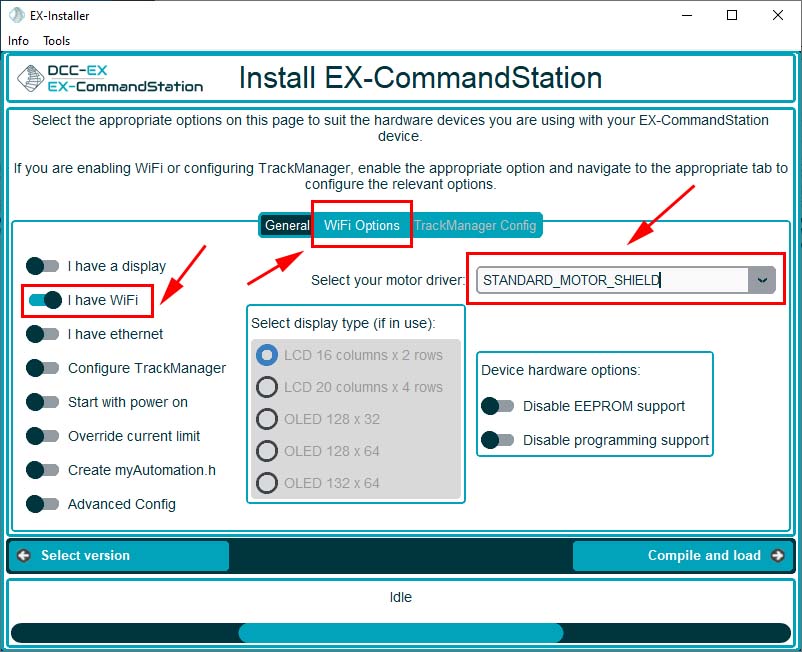
- Select “I have WiFi”
- Select “STANDARD_MOTOR_SHIELD” from the “Select your motor driver” list box
- Lastly select the “Wifi Options” tab located on the top-center
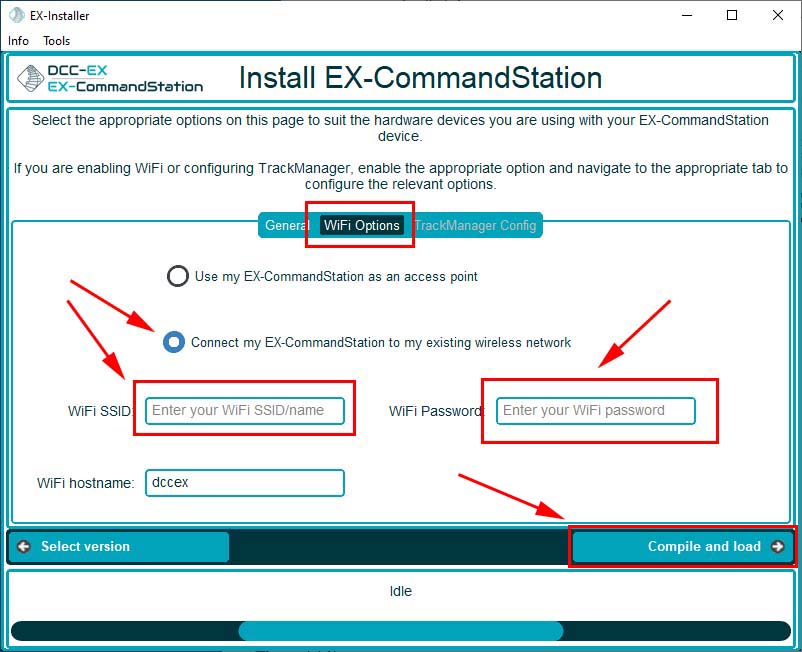
- Select “Connect my EX-CommandStation to my existing wireless network”
- Enter the WiFi SSID for your wireless network
- Enter the WiFi Password for your wireless network
- Select “Compile and load”

Note
The WiFi SSID and password are the same you use to connect any wireless device to your network.
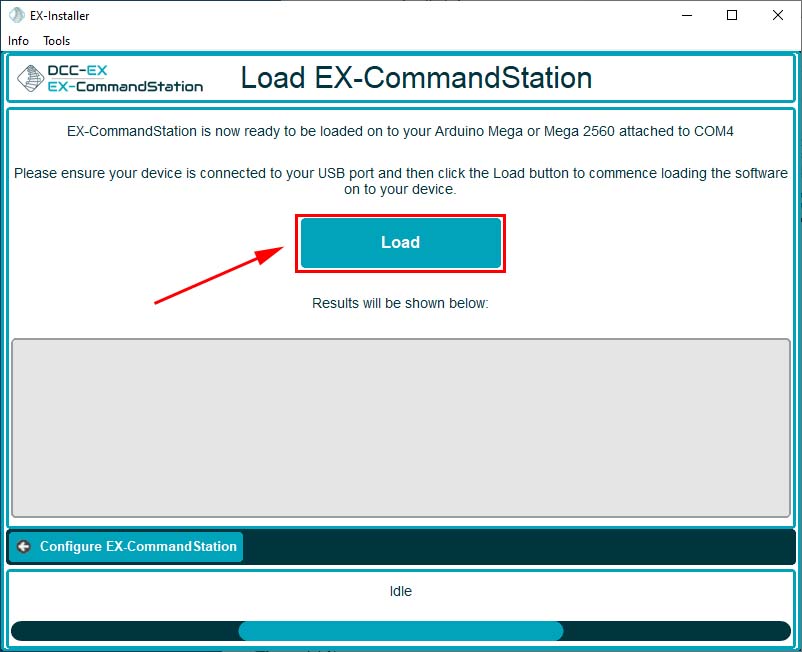
- A confirmation prompt is displayed. Select “Load” to program the firmware on your DCC-EX command station
- You should see a status bar at the bottom of the installer window and the Mega will blink a few times. Be patient!
- A final status window will be displayed
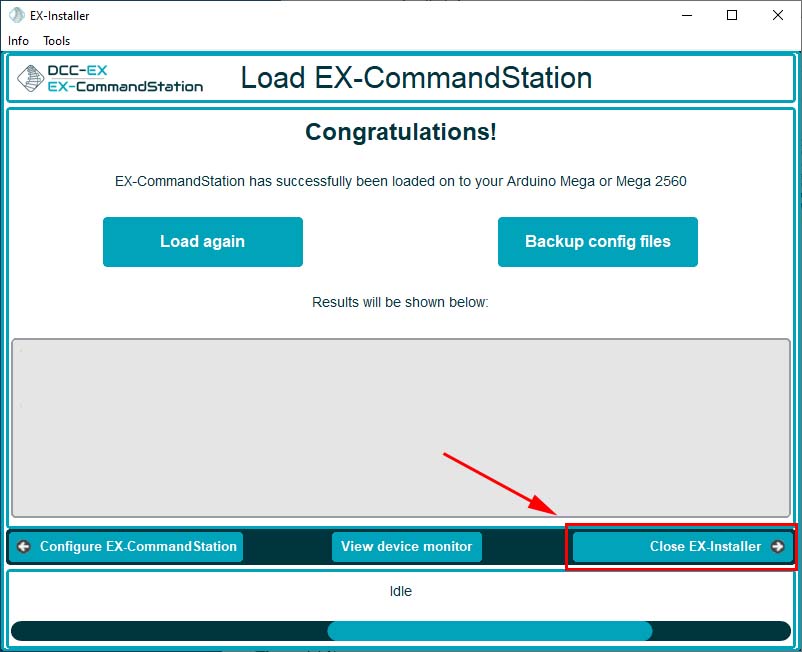
- Congratulations! You’ve now programmed the firmware and you have a fully functioning DCC-EX command station.
Next Step
The next step is to attach your DCC-EX to your model railroad layout, verify your DCC-EX command station is fully functional, and start running trains!